4 easy ways to get rid of ads on your Roku TV
For the most part, I really enjoy using my Roku Ultra. It's fast, the menus are straightforward to navigate, and after a long day when I just want to put my feet up and relax, it makes jumping into a show or movie incredibly easy.
That said, there's one part of the Roku experience that's always annoyed me, and I'm certainly not the only one this has bothered. It's the constant stream of ads and recommendations scattered throughout the interface. When I'm trying to get to my apps on the home screen, I don't want to scroll past row after row of recommendations just to find what I'm looking for. And I especially don't like it when Roku suddenly changes my wallpaper into an advertisement, as it recently did to promote the World Cup.
Unfortunately, there's no way to completely remove all of Roku's ads and recommendations. However, you can significantly cut down on how many you see, making the overall experience much more enjoyable and the interface less cluttered. There's also an important setting you should turn off to limit Roku's ad tracking. Here's how I reduced the number of ads on my Roku Ultra and further protected my privacy. This process also works on any Roku smart TV or Roku Streaming Stick.
Get rid of the Recommendation rows
Navigate to your apps faster
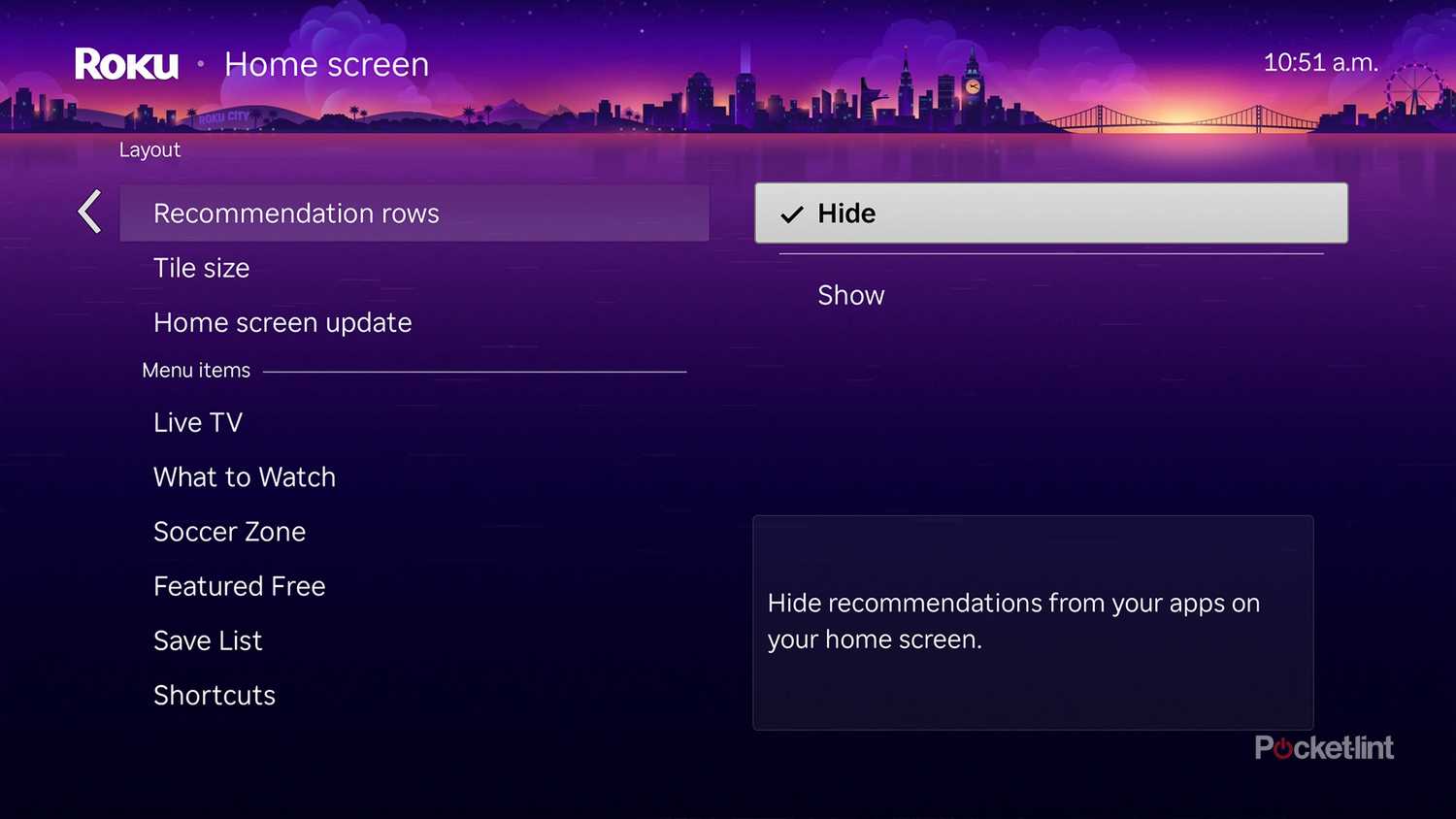
One of the biggest sources of ads and recommendations on Roku's home screen is the Recommendation Row. As the name suggests, it's a row of suggested shows and movies that sits above your apps, forcing you to scroll past it every time you want to open something.
Personally, the first thing I do when I turn on my Roku is head straight to my apps. I don't need a row of recommendations getting in the way every single time. If you feel the same way, here's how to hide it:
1. From the Roku home screen, go to Settings > Home screen.
2. Set Recommendation rows to Hide.
If you have Roku's newer home screen layout, I also recommend setting Quick Access to Hide. It removes another layer of clutter, so getting to your apps is even faster.
Stop Roku from automatically changing your device's background to an ad
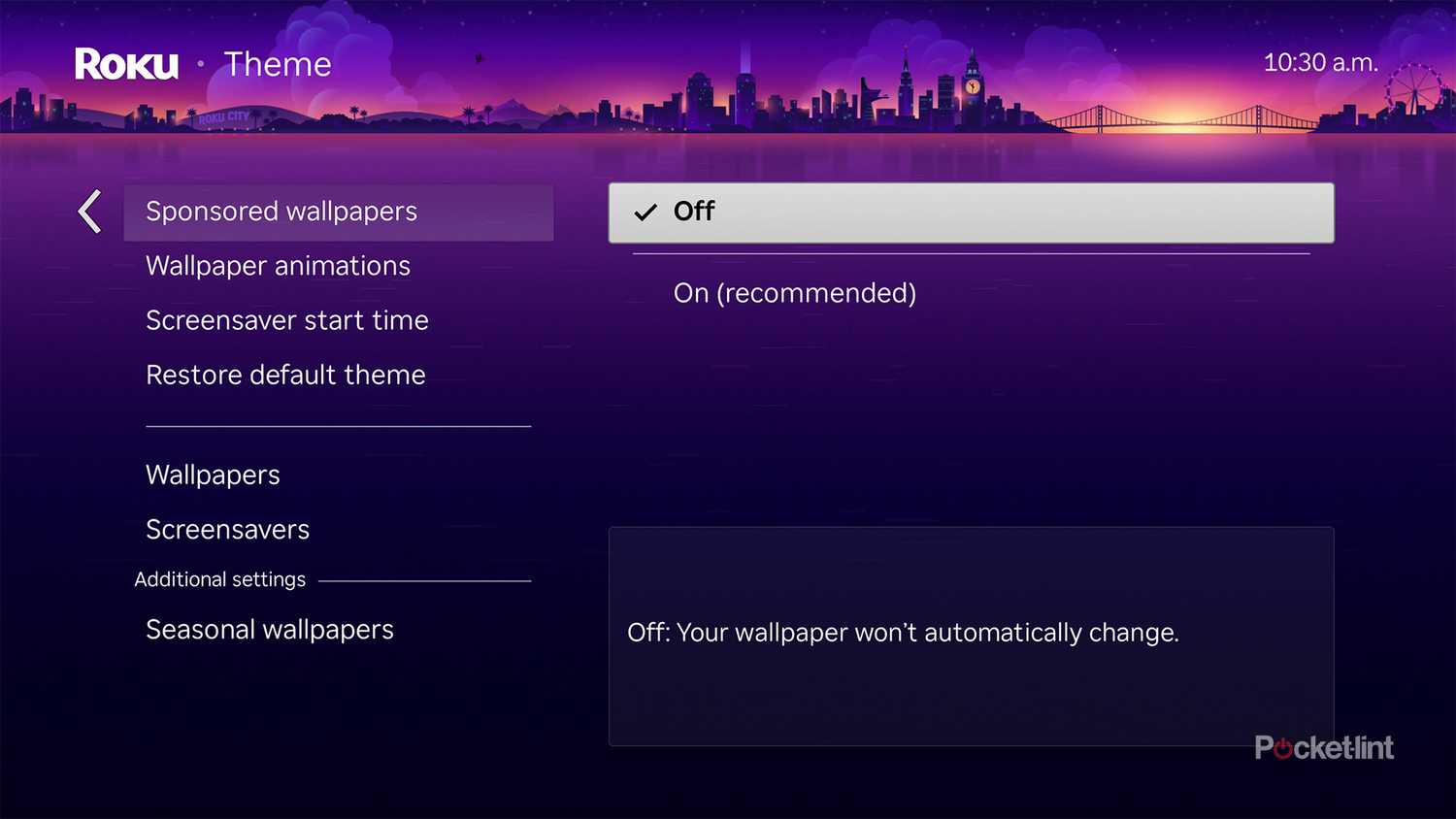
Another way Roku pushes ads is through its wallpapers. I keep mine set to Roku City, which I actually really like. But occasionally, I'll turn on my Roku only to find that it's automatically changed the background to promote something else, like it recently did with wallpapers advertising the FIFA World Cup and The Devil Wears Prada 2.
I'm not a fan of Roku changing the wallpaper on my TV just to squeeze in even more advertising. Thankfully, there's a simple setting you can disable to stop Roku from automatically replacing your wallpaper with promotional backgrounds ever again. Here's how:
1. On the Roku home screen, go to Settings > Theme.
2. Set Sponsored Wallpapers to Off.
Also, Roku will sometimes change your wallpaper to celebrate different seasons, which you can disable by turning off Seasonal wallpapers.
Protect your privacy and data

If you have a Roku smart TV, there's one setting in particular that I recommend turning off: ACR, which is short for Automatic Content Recognition. It detects what's playing on your screen, so your TV can serve you more personalized ads. ACR isn't on Roku streaming devices, but some Roku smart TVs have it enabled by default, or it may have been turned on during setup without you realizing it.
If you'd rather your TV not spy on what you're watching to tailor ads, it's worth disabling. It won't eliminate ads altogether, but it will stop your Roku TV from using your viewing habits to personalize them and protect your privacy. Here's how to turn off ACR:
1. From the Roku home screen, go to Settings.
2. Navigate to Privacy > Smart TV Experience.
3. Turn off Use info from TV inputs (or any setting that references ACR).
There's another privacy setting worth changing that applies to both Roku TVs and Roku streaming devices. Go to Settings > Privacy, then turn off Personalize Ads to stop Roku from tailoring ads based on the apps you use. While you're there, I also recommend selecting Reset advertising identifier, which clears the advertising ID Roku uses to build an advertising profile based on your device activity. Lastly, you can modify the types of ads you see under Sensitive ad content.
Consider turning off Wi-Fi on your Roku TV
If you want to get rid of Roku's ads altogether, there's one foolproof option: disconnect your Roku TV from Wi-Fi. This isn't really practical on a Roku Streaming Stick or Roku Ultra, since they rely on an internet connection to stream anything. But on a Roku smart TV, it can make sense if you primarily use devices connected through HDMI, like a PS5 or an Apple TV 4K.
Without an internet connection, your Roku TV can't download or display ads, and it also can't collect usage data. So if your main goal is to avoid ads and improve your privacy, and you only use the built-in Roku interface to switch between HDMI inputs, disconnecting your TV from Wi-Fi is a surprisingly effective solution. It also turns your smart TV back into what it was always meant to be in the first place: just a TV. Here's how you can do this:
1. From the Roku home screen, go to Settings.
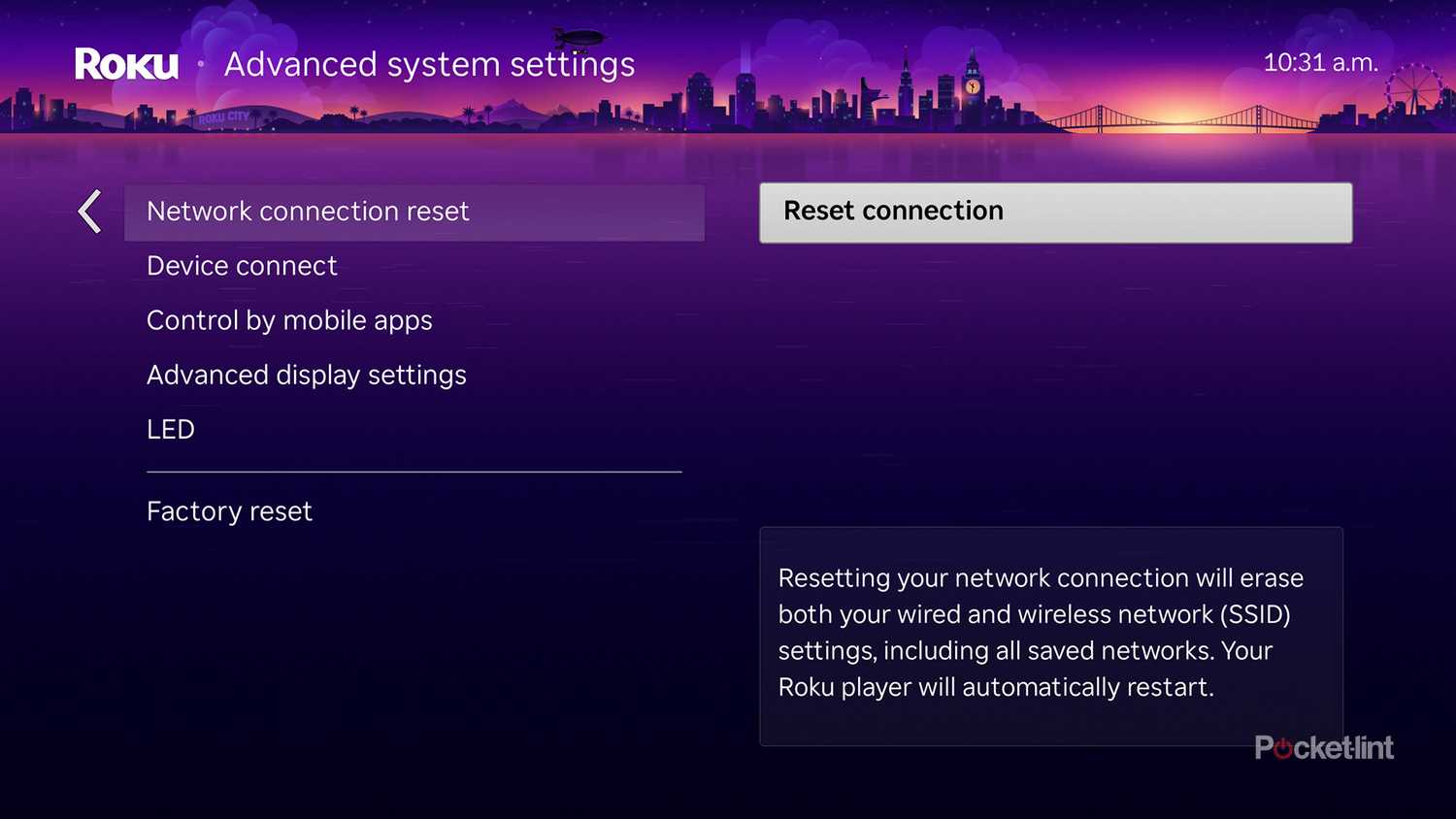
2. Navigate to Settings > Advanced system settings.
3. Select Network connection reset.
Roku doesn't have a simple "Turn off Wi-Fi" button or a "Forget this connection" option, so the only way to disconnect your TV from Wi-Fi is to perform a network connection reset, which will reset all network settings on your Roku. And don't worry, you can always reconnect your TV to Wi-Fi whenever you want by going to Settings > Network.
An improved experience
Overall, while you can't completely eliminate every ad on your Roku device -- unless you disconnect it from Wi-Fi -- you can significantly reduce the number you see by changing the settings I mentioned above. Once you've removed the Recommendation rows, disabled Sponsored wallpapers, and turned off Personalized ads and ACR, your Roku's user interface will look less cluttered and less ad-heavy, and your privacy will be better protected.