How to disable ACR on a Google TV
Often, your devices have hidden beneficial features. They're concealed not because of some conspiracy, but simply because explaining everything your device can do would be impractical in a manual or tutorial app. The iPhone 17, for instance, lets you adjust the PWM of its display, which is helpful if you're among the people who get a headache looking at smartphone screens.
In some circumstances, options are tucked away because they don't serve your interests -- they help the manufacturer and/or its partners, and they don't want you interfering if they can prevent it. ACR might be the top example of this in any product category. In this guide, I'll explain what it does, why it's terrible, and the specific instructions you need to disable it on a Google-based TV. You might also want to check out my tips if you're got a Roku TV.
What is ACR, and why is it so rotten?
The place where there is no darkness
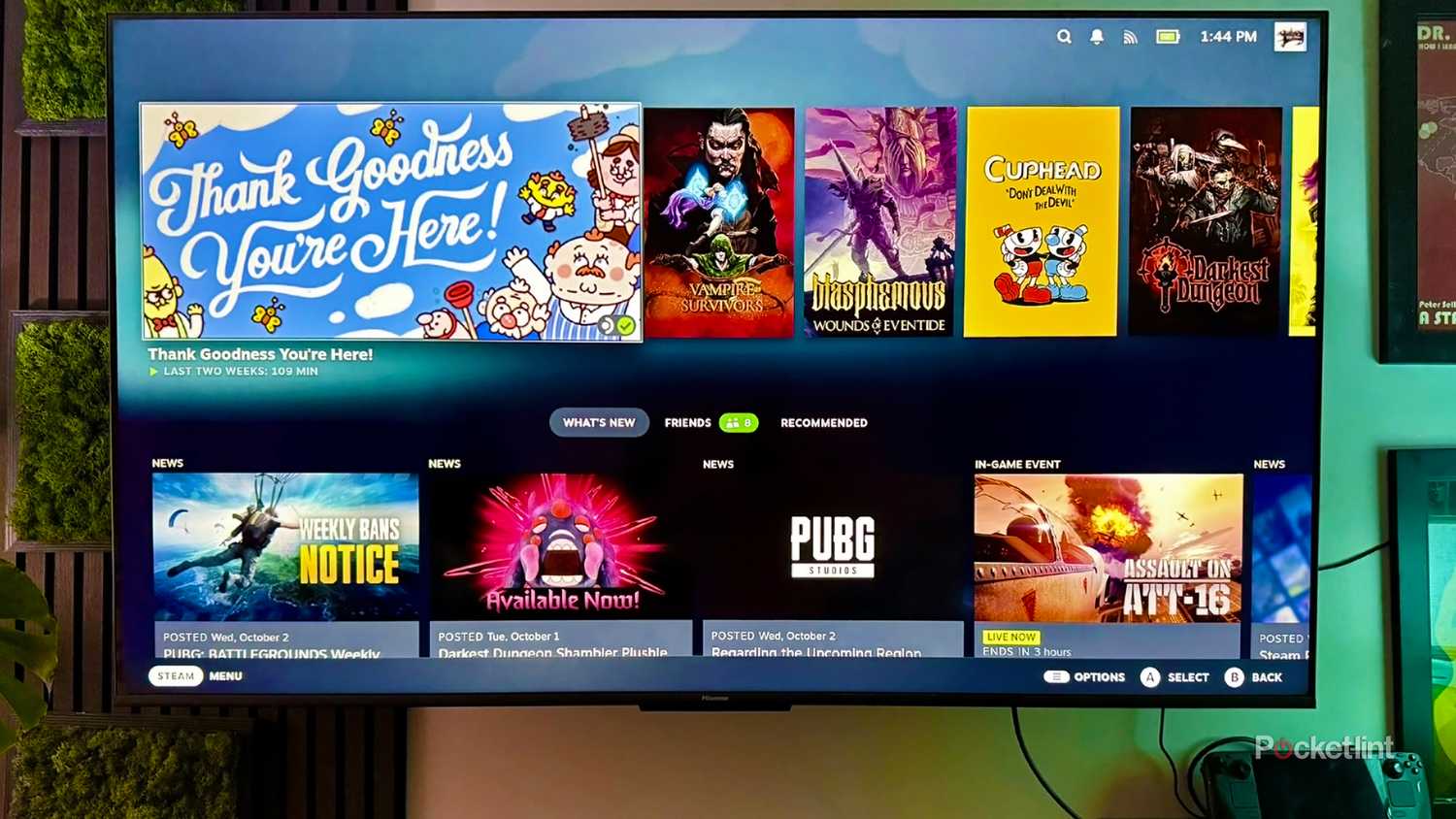
ACR is short for Automatic Content Recognition. While TV makers may try to spin it as "personalizing" your experience, the real aim is letting marketers refine their ad targeting by telling them what you're watching. If I'm shopping for e-bikes or EUCs, marketers don't want to waste their budget bombarding me with ads for home renovations.
That's not a far cry from what happens on the web without anti-tracking plugins, so what really makes ACR malicious is its scope. When it's on, it's always scanning, no matter if you're using a PC, a cable box, a Blu-ray player, or a game console. As far as it's concerned, Google Docs, The Lord of the Rings, and that VHS transfer of your preschool graduation are all fair game. It's not always going to find useful data, and your exact identity remains cloaked -- but you're being fingerprinted nevertheless, and many people resent this intrusion.
ACR isn't necessarily switched on for every Google TV, and it's completely absent on the add-on Google TV Streamer. It's all too common however, and disabling this "feature" should be a priority on any new TV.
How to disable ACR on Google TVs
A few short steps

Unlike Roku products, there's no standard way to shut off ACR on Google TVs. Manufacturers typically produce custom forks of the software, leading to different menu systems. On top of that, they invent euphemisms for ACR, which discourages you from turning it off -- or even recognizing what you're looking at.
On Sony TVs, try these steps:
- On your homescreen, open Settings (likely a gear icon).
- Click Initial Setup.
- Select Samba Interactive TV, then Disable.
- Return to Settings -> Apps.
- If you see Samba Services Manager, click it. Otherwise, you're already done.
- Hit Clear Cache, then Force Stop.
- Click Disable.
With Hisense TVs, things are a little more straightforward:
- From the homescreen, open Settings (the gear icon).
- Navigate to System -> Privacy.
- Look for an option like Smart TV Experience or Viewing Information Services.
- Select it and read its description. If it echoes the description of ACR, turn it off.
The process is also simple on TCL TVs, but slightly different:
- On the homescreen, open Settings.
- Click System, then Display & Sound.
- Under Intelligent Settings, turn everything off.
Keep in mind that menus and labels may vary, even within brands. TV makers are continually changing their products, so things could look different between models released just months apart.
On a final note, remember that disabling ACR doesn't eliminate all tracking. You'll want to scour menus for options like Ads Personalization, Ad Tracking, or Interest-Based Ads, then turn those off too.